Can You Bind Any Transmitter to Any Receiver? Protocols Explained
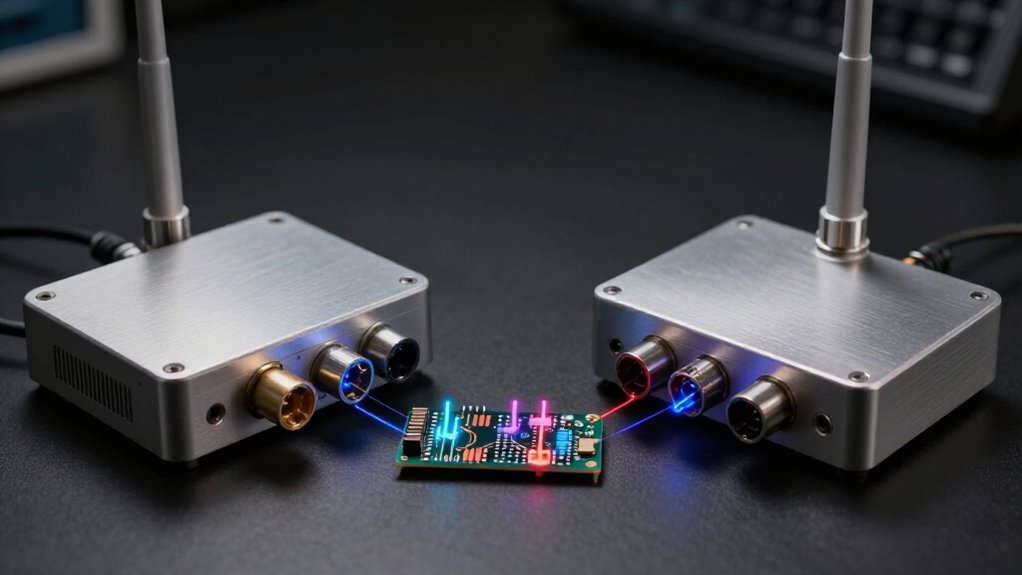
No. You can’t bind any transmitter to any receiver; you need a compatible radio protocol, generation, and operating mode.
A shared brand or 2.4 GHz band doesn’t guarantee a match: FlySky AFHDS, AFHDS 2A, and AFHDS 3 differ, while ELRS won’t bind directly to FrSky ACCESS.
Check the exact receiver revision, firmware, region, and transmitter module against the manufacturer’s compatibility chart. The sections below explain failsafe settings and connector pinout before you power your model.
Protocol Compatibility Is Decisive
Before binding, confirm that the transmitter and receiver support the same radio protocol; sharing the 2.4 GHz band does not make them compatible. Check the exact protocol and version before you bind. FlySky AFHDS, AFHDS 2A, and AFHDS 3 aren’t interchangeable; your equipment must implement the same protocol generation.
Verify the receiver’s compatibility chart, then confirm its operating mode and whether your transmitter supports the required module. Check regional requirements and firmware, too, because either can affect protocol availability or binding behavior. During binding, your transmitter sends its identity, which the compatible receiver stores. This process establishes a link only when both devices already support matching protocol details; it can’t convert one protocol into another or overcome a mismatch. Confirm each listed condition before binding.
Why Brand Names Mislead
A shared brand name doesn’t guarantee compatibility: the transmitter and receiver must support the same protocol and operating mode. Brand families can contain incompatible protocol generations. For example, FlySky AFHDS, AFHDS 2A, and AFHDS 3 are not mutually compatible, so you can’t assume that two FlySky units will bind.
Futaba receivers may use S-FHSS or FASST; check the exact transmitter–receiver compatibility chart before you choose a model. Spektrum radios generally need Spektrum-compatible receivers supporting DSMX or DSM2.
Before buying or binding, verify the receiver model, protocol, supported module, region, and firmware requirements. The “2.4 GHz” label identifies a frequency band, not a shared protocol or operating mode. Check those specifications against your transmitter’s capabilities; if the protocol or required mode differs, the link won’t establish.
ELRS Meets FrSky ACCESS
Although both operate at 2.4 GHz, ExpressLRS (ELRS) and FrSky ACCESS use different protocols, so an ACCESS receiver won’t bind directly to an ELRS transmitter.
To fly ELRS, choose an ELRS-compatible receiver and pair it with a transmitter that has built-in ELRS or accepts a compatible external ELRS module. A FrSky radio may support ELRS modules, but check module compatibility, firmware, and regional frequency rules before buying. For an ACCESS receiver, use a compatible FrSky ACCESS transmitter or module; FrSky’s older ACCST protocol isn’t automatically interchangeable with ACCESS.
After binding, select the correct model memory and verify channel outputs and failsafe behavior. Then perform a range check according to the manufacturers’ instructions before flight. You can’t infer compatibility from frequency alone.
Receiver Firmware Variants
Match your receiver’s exact firmware and protocol to the transmitter; shared frequency bands alone don’t guarantee compatibility. Check the model, regional variant, and manufacturer compatibility chart before binding or purchase. After updating firmware, verify protocol settings and follow the manufacturer’s rebinding instructions.
Firmware Compatibility
Before binding, verify that the transmitter and receiver support the same radio protocol and compatible firmware; sharing a brand or frequency band isn’t enough. Protocols may have incompatible generations: FlySky AFHDS, AFHDS 2A, and AFHDS 3 receivers aren’t interchangeable. Check your receiver variant against the manufacturer’s compatibility chart, including required firmware, transmitter mode, and supported modules.
A matching protocol name may not establish compatibility if firmware or module configuration differs. After a firmware update, recheck protocol settings and follow the manufacturer’s update and binding instructions; the change may require a fresh bind. Don’t install firmware intended for another receiver variant, which can damage it. If compatibility remains unclear, confirm the receiver’s exact hardware version and firmware requirements with the manufacturer before attempting to bind.
Regional Variants
Regional Variants
Firmware compatibility also depends on regional variants: a transmitter and receiver must use compatible protocol and firmware versions approved for the same region. A shared brand or 2.4 GHz band doesn’t establish compatibility; regional firmware may enforce different frequency settings or protocol behavior. Before binding, check the manufacturer’s compatibility chart and confirm that both exact device variants are approved for your region.
For example, FlySky AFHDS, AFHDS 2A, and AFHDS 3 are systems, not interchangeable labels. Your transmitter must support the receiver’s specific mode as well as its regional variant. Don’t try to bypass a mismatch by installing arbitrary firmware: use only manufacturer-supported firmware for the exact hardware and region. If the protocol, variant, or regional approval differs, binding may fail or operation may be unreliable.
Updating Receiver Firmware
Because receiver firmware variants can support different protocol versions or transmitter families, check the manufacturer’s compatibility chart before updating. Don’t assume a shared brand or 2.4 GHz frequency makes the link compatible; the receiver must support your transmitter’s exact protocol and mode.
First, confirm your receiver’s model and hardware revision. Then follow the manufacturer’s update procedure and install only firmware listed for that configuration; a file for another variant may change protocol support or prevent binding. Firmware selection matters because protocol names and modes can differ across otherwise similar receiver variants.
After updating, recheck protocol and mode settings, and bind again if the manufacturer requires it. If binding fails, verify firmware compatibility and receiver power before you repeat the bind procedure. Don’t update solely to fix an unrelated bind failure.
Receiver Hardware Revisions
Check your receiver’s hardware revision number against the transmitter manufacturer’s compatibility chart, since protocol support can vary within a model line. Install only firmware specified for that exact revision, then verify the protocol and operating mode after updating. If compatibility or markings aren’t clear, consult the manual or manufacturer before binding.
Hardware Revision Numbers
A receiver’s hardware revision identifies its physical design and may determine which radio protocols, operating modes, and features it supports, even when another revision shares the same product name. Before you bind, check the exact revision against the transmitter’s compatibility chart and receiver manual. A shared brand or frequency band doesn’t establish support.
Verify that the listed revision supports your transmitter’s protocol, operating mode, and required firmware. Firmware options can differ by revision, so install only packages the manufacturer lists for that exact version; using another build can cause malfunction or leave the receiver unusable. If you can’t find a revision mark, inspect the label and consult manufacturer documentation or ask the seller rather than infer it from the casing. Record the hardware number before selecting firmware.
Protocol Compatibility Changes
Even when two receivers share a product name, their hardware revisions may support different protocols because support depends on both radio hardware and firmware. You should check the exact model and revision against the transmitter maker’s compatibility chart; matching brands or a “2.4 GHz” label doesn’t prove compatibility. Protocol families and modes aren’t interchangeable: FlySky AFHDS, AFHDS 2A, and AFHDS 3 are distinct, while Futaba S-FHSS and FASST identify different modes.
Before you bind or buy, verify the receiver’s supported protocol and mode, its revision, regional requirements, and any required transmitter module. A receiver can appear identical yet fail to bind when its radio hardware or protocol implementation doesn’t match the transmitter. Use the chart’s entries, not the product family name alone. Check regional compatibility too, since supported bands or configurations may vary. This helps you confirm a protocol match.
Firmware Update Requirements
Because firmware support can vary by receiver hardware revision, verify the exact revision’s manual and compatibility chart before binding.
A shared product name doesn’t guarantee identical protocol support. Check the transmitter and receiver firmware versions, then confirm that the receiver’s hardware revision supports the transmitter’s protocol and operating mode. Update only when the manufacturer’s documentation requires a specific version; don’t assume an update is necessary, and never load a file meant for another revision, since incompatible firmware can disable the receiver.
Follow the prescribed update procedure and power requirements. Afterward, recheck protocol and mode settings, and perform a fresh bind if required. Before use, verify reconnection, control directions, failsafe response, and range under safe conditions; a successful bind alone doesn’t prove reliable operation.
Pre-Purchase Protocol Checks
Before buying, verify that the transmitter supports the receiver’s exact protocol and generation; sharing the 2.4 GHz band doesn’t guarantee compatibility. Check the protocol family and generation before you purchase.
FlySky AFHDS, AFHDS 2A, and AFHDS 3 aren’t interchangeable; a radio that supports one may not bind to a receiver using another. For FrSky, confirm whether both devices use ACCST or ACCESS. With Spektrum, check DSMX or DSM2 compatibility.
Then consult the manufacturer’s receiver compatibility chart; verify the required operating mode, module support, firmware version, and regional requirements. Finally, match the receiver’s channel capacity to your model: most aircraft need at least four channels, while cars and boats commonly use three or four. Check channel count for your model and planned controls before purchase.
Failsafe Behavior After Signal Loss
When the receiver loses a valid transmitter signal, its failsafe either holds the last command or moves each channel to a preset position. Don’t assume your controls will return to neutral automatically; the receiver’s response depends on its failsafe configuration.
Check your transmitter and model manuals to identify how the binding protocol stores or applies those settings. Configure each relevant channel for a safe response after link loss. For a surface model, that may mean no drive or the manufacturer-specified neutral or braking response. For an aircraft, follow the manufacturer’s instructions for a safe low-throttle setting. A compatible protocol establishes the link, but it doesn’t guarantee identical failsafe options or default behavior across brands, receiver models, and firmware versions. Your chosen response should account for the model’s motion and power state; a held command can continue driving or retain throttle rather than stopping the system immediately and safely.
Failsafe Testing After Binding
After binding, verify the receiver’s failsafe response rather than assuming the controls return to neutral. Follow your transmitter and model manuals to set failsafe positions; your system may capture them during binding or require later assignment.
- Restrain your model securely, then switch off the transmitter. Confirm an electric surface model stops driving or enters its specified neutral or braking response.
- For aircraft, verify the manufacturer’s recommended safe low-throttle setting. Check other channels for their prescribed hold or preset behavior.
- Repeat this test after rebinding, major receiver relocation, antenna repair, or power-system changes.
Keep your model restrained throughout, and restore power only after confirming the transmitter’s on and the controls respond normally. Record the tested state so you can detect changes after configuration work or service.
Check Connector Pinout
Check Connector Pinout
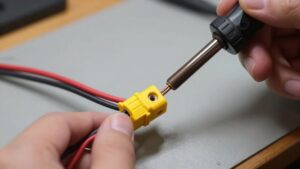
Check the receiver manual’s pinout before connecting anything: confirm the signal, positive-voltage, and ground positions, since matching connector shapes don’t guarantee matching wiring.
Channel ports often use three-pin servo connectors, but manufacturers may place signal, voltage, and ground differently. Read labels or diagrams; don’t infer pin order from the housing.
| Pin | Check | Risk |
|---|---|---|
| Signal | Verify channel input | No control |
| Positive | Confirm voltage | Damage |
| Ground | Match return | Fault |
Before testing, disconnect power and correct reversed polarity; it can damage the receiver or connected equipment. Confirm supply voltage and connector suit your servos and ESC; never force a plug. Pinout compatibility confirms wiring, not radio-protocol compatibility or binding. Check protocol support separately, then power up only after carefully verifying connections against the receiver manual before applying power.
Conclusion
You can’t bind just any transmitter to any receiver: their radio protocols must match, and brand names alone don’t confirm compatibility. Check the receiver’s exact firmware variant, hardware revision, and connector pinout before buying. After binding, configure the failsafe behavior and test it with the motors disabled by switching off the transmitter. Confirm the receiver enters its intended safe state; a successful bind doesn’t guarantee reliable failsafe operation or a compatible channel configuration.